You can create an image with artificial intelligence (AI) for free in ChatGPT, Gemini, Microsoft Copilot or Canva: you describe in words what you want to see, and the tool draws it in a few seconds. After reading this article you will know which tool to open, how to write a description so the result is not random, how to fix one detail without redoing the whole image, and what the terms of use allow if you want to use the image for work.
Where can you create an image for free?
All four tools require you to sign in to an account. The free versions limit the number of images, and the exact numbers are usually not published or keep changing: when you reach the limit, the tool will tell you and you will have to wait (information checked October 21, 2026).
ChatGPT (chatgpt.com). OpenAI states that free plan users can create images, but a separate usage limit applies. You simply ask for an image in the chat, or choose More → Images in the sidebar, where you will find templates and all the images you have created. How to get started is covered separately (What is ChatGPT and how to use it).
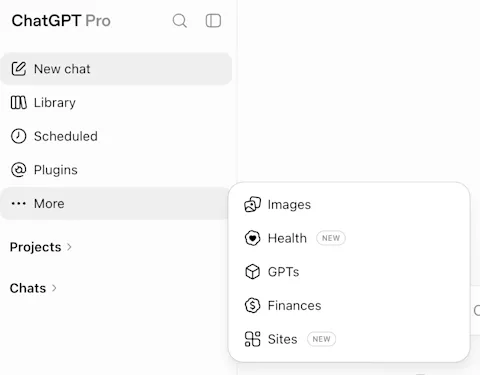
- 1 More in the sidebar
- 2 Images – image creation, templates and all the images you have created
Gemini (gemini.google.com). Google's help page states that you can create images without a paid plan too (they are then downloaded at a lower resolution), and that you can create them from age 13. Users under 18 cannot edit images. More about the tool itself is in the article about Gemini (What is Google Gemini and how to use it every day).
- 1Sidebar (top left)
- 2Images
- 3Pick a template or type a prompt
Based on the Google Help Center in English (checked October 23, 2026); in the Lithuanian interface the labels are translated.
Microsoft Copilot (copilot.microsoft.com). You need a Microsoft account. Microsoft writes that features depend on the platform or plan, but the core features are available to most users. Here, too, you ask for an image in the chat.
Canva (canva.com). A good fit when you want to put the image straight into an invitation, a poster or a post with your own text. Images are created by the "Dream Lab" and "Magic Media" tools, and AI use is limited on the free plan. The Canva Help Center states that Dream Lab gives four variants per prompt.
Which one is best? Start with the one you already use. If you are still choosing, we compared the free AI options separately (Free AI).
How to describe an image: five things
"Draw a dog" is a prompt that gets you any dog on any background. The more you say yourself, the less the tool has to guess. Before writing, answer five questions for yourself.
- What is in the image? The main subject and what it is doing: "a brown dachshund with a red bow tie sitting on a windowsill".
- What style? Photograph, watercolor, pencil drawing, flat vector illustration, cartoon style.
- What composition? Close up or from a distance, from above or from the front, subject in the center or to the side, what is in the background.
- What format? Square (for a post), vertical (for a story on a phone), horizontal (for a website header or a presentation). You can also give the aspect ratio, e.g. 1:1, 4:5, 16:9 or 9:16.
- What colors and mood? "Warm autumn colors", "pastel, light background", "calm evening light".
The prompts below are in English; the original article wrote them in Lithuanian, which these tools also accept. If a tool misunderstands a description written in another language, ask a chat tool to translate it into English and try again with the translation. General principles of good prompts are in the guide on how to write prompts (How to write AI prompts).
Four AI image prompt examples you can copy
Replace the details with your own. The result will be a little different every time, and that is normal.
A birthday invitation. It is better to add the text with the date and address yourself later (see below for why), so ask only for a background with space for text.
Create a vertical image (4:5) for a birthday invitation: colorful balloons and confetti at the top, leave an empty light area at the bottom for text. Watercolor style, pastel colors. No text or letters in the image.
An illustration for a social media post. For example, a hair salon wants to announce new opening hours.
Create a square (1:1) flat vector illustration: a cozy hair salon, a large clock on the wall, scissors and a comb next to the chair. Warm sand and green colors, simple background, no people and no text.
A product background. If you have a photo of your product, it is better to ask only for a background and place the product yourself in Canva or another app; that way the AI will not "fix" the label or the shape.
Create a horizontal (16:9) photographic-style background for a product photo: a light wooden table, linen fabric and a few lavender sprigs next to it, soft daylight from the left. The center of the table is empty. No logos and no text.
A drawing for children. For example, a coloring page.
Create a coloring page for a 5-year-old: a friendly hedgehog with an apple on its back in a forest. Only thick black outlines on a white background, large simple areas, no shading. Vertical A4 format.
How to fix it: change one thing at a time
The first version is rarely exactly what you need. Instead of writing everything again, ask in the same chat to change one specific thing and leave the rest. When you change several things at once, what was already good often changes too.
Keep everything the same, just make the balloons blue and green and the background slightly lighter.
Other useful refinements: "make the subject smaller and move it to the left", "remove the person in the background", "the same, but in horizontal format", "fewer details, a simpler style". If it is still wrong after a few tries, start a new chat and write a more precise description right away, so the old confusion no longer gets in the way.
Before using an image, zoom in and look at it: hands, fingers, eyes, small objects, the background and any letters. Google's Help Center names exactly these as common signs of AI images: distorted text, errors in small details (hands, teeth, background) and inconsistent shadows.
Common problems and what to do about them
Text with errors. AI often distorts, drops or swaps letters in an image, and Lithuanian letters (ą, č, ę, ė, į, š, ų, ū, ž) are especially risky. The most reliable approach: ask for an image without text and add the lettering yourself in Canva, Word or your phone's editor. If you do ask for text, put it in quotes and keep it short, then read the result letter by letter.
Strange hands and small details. An extra finger, objects merging together, illogical shadows. Ask it to fix the specific spot, or choose a composition where hands are not visible.
Logos and trademarks. Do not ask AI to draw your logo: it will look "similar" but be inaccurate. Place your real logo yourself in an editor. Do not ask for other companies' trademarks or well-known characters either: the Canva Help Center notes that recognizable people, characters or trademarks require permission from the rights holder, which Canva cannot grant.
Wrong format. If the image is square and you needed vertical, ask for "the same, but in 9:16 format". In Canva Magic Media you can choose the format (square, landscape, portrait) before generating.
Can you use AI images commercially?
This is not legal advice, only what the tools' own terms say (checked October 21, 2026). Before using an image in advertising or on a product you sell, read the relevant terms or consult a lawyer.
OpenAI states in its European terms of use that the content you create belongs to you to the extent applicable law allows, but others may get a similar result. You must not claim that AI-generated content was created by a human.
Google writes in its terms of service that it does not claim ownership of content you create with its services. Its prohibited use policy does not allow violating the rights of others, including privacy and intellectual property.
Microsoft Copilot terms for personal accounts state that you may use Copilot for personal use only. If you need images for a company, first find out which terms apply to your account.
Canva states in its AI product terms that the content you create belongs to you and may be used for any lawful purpose at your own risk, except where it includes content from the Canva library (then that license applies). Canva also notes that whether an AI creation is protected by copyright differs from country to country.
Real people, other people's photos and consent
Many tools let you upload a photo and edit it. A simple rule applies here: do not upload photos of other people without their consent, and do not create images of real people that could mislead. Microsoft Copilot's terms directly forbid creating or editing images of other people without their permission and sharing content that includes other people without their consent. Google's prohibited use policy forbids impersonating another person to deceive.
Take special care with photos of children, even if they are your own. Also do not upload documents, personal ID numbers, license plates or other personal data visible in a photo to AI tools. If you need an illustration with a person, ask for a made-up one, such as "a middle-aged woman at a computer", not a specific individual.
How can you tell an image was made by AI?
Some tools add invisible marks to images. OpenAI states that images created in ChatGPT carry C2PA metadata (a kind of "provenance passport") and a SynthID watermark, and you can check them at openai.com/verify. Google states that content created by its AI is marked with SynthID, and in the Gemini app you can ask whether an uploaded image was created with Google AI. Microsoft Copilot's and Canva's terms forbid hiding or removing these marks.
It is important to know the limits: metadata can disappear when you take a screenshot or upload the image to a social network, so "no mark found" does not mean the image is real. If you use an AI image publicly, it is fair to say so.
Sources
OpenAI: ChatGPT Free Tier FAQ: image creation on the free plan and separate limits.
OpenAI: Images in ChatGPT: creating images in the chat, the Images section and templates.
OpenAI: C2PA and SynthID in OpenAI-generated images: how ChatGPT images are marked and checked.
OpenAI Terms of Use for Europe: ownership of content and the ban on claiming content was created by a human.
Gemini Help: Generate images: how to create images, age limits, resolution without a paid plan.
Gemini Help: Check for AI content: SynthID, Content Credentials and common signs of AI images.
Google Terms of Service: Google does not claim ownership of the content you create.
Google Generative AI Prohibited Use Policy: violating the rights of others, privacy and impersonation.
Microsoft Copilot Terms of Use: personal use, images of other people, content marks.
Microsoft: How to make an AI picture with Copilot: steps and availability.
Canva: Dream Lab: four variants per prompt, AI usage limit.
Canva: Magic Media: format options, ownership and permissions for recognizable people or trademarks.
Canva AI Product Terms: ownership and use of generated content, the ban on removing C2PA marks.