You can upload a long PDF (terms and conditions, a draft contract, a manual or a report) to ChatGPT, Claude or Gemini and ask in plain words: "where does it say anything about…", "what are the deadlines here", "what do I have to do". If you have many documents, or it matters to see where an answer comes from, Gemini Notebook (called NotebookLM until July 2026) is more convenient. After reading this you will know how to upload a file, have ready-made prompts and know how to check in a few minutes that the AI has not added anything.
What AI can and cannot do with a long document
An AI tool is good at finding the places that discuss what you are interested in, condensing chapters into a few bullet points, putting dates and amounts into a table, comparing two versions and explaining complicated language more simply. That saves time when you need to get your bearings quickly in a 50- or 200-page document.
But it does not read the document the way you do. It can miss a footnote, mix up two similar clauses or confidently "answer" a question the document says nothing about. So the whole approach rests on one rule: the AI shows you the way, but you read the final word in the original.
How to upload a PDF to ChatGPT, Claude or Gemini
The principle is the same in all three tools.
- Sign in to your account (chatgpt.com, claude.ai or gemini.google.com) and start a new chat.
- Click the add button next to the message box ("+" or a paper clip) and choose the PDF file. On a computer you can usually just drag the file into the chat window.
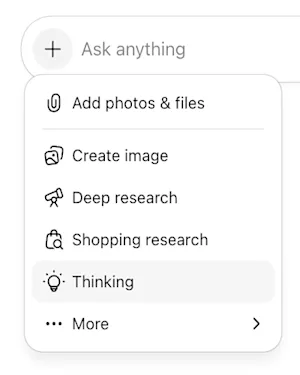
- 1 + on the left of the message box – opens the menu
- 2 Add photos & files – choose the PDF on your computer
- In the same box, write what to do with the document and send it. If you upload the file without a question, the answer tends to be more general.
- Continue in the same chat: the tool "sees" the uploaded file, so you can ask one thing after another.
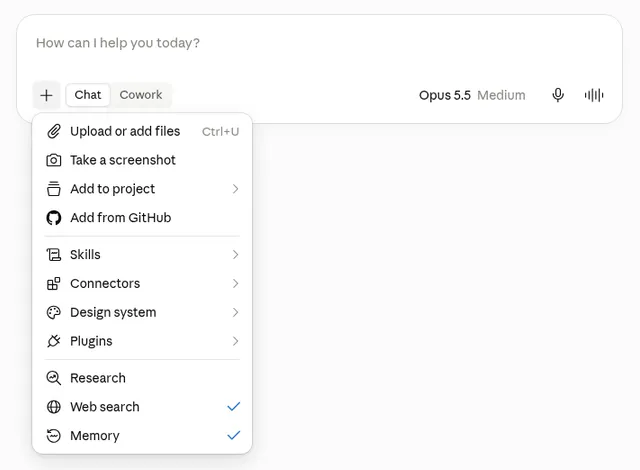
- 1 + at the bottom left of the message box – opens the menu
- 2 Upload or add files – choose the PDF (called "Add files or photos" in the Help Center)
Worth knowing (checked October 21, 2026, based on the vendors' help pages). ChatGPT allows file uploads on the free plan too, but OpenAI states that free users can upload only 3 files per day. Also, on all plans except Enterprise only the text is taken from a PDF and images are dropped, so ChatGPT does not see charts or scanned pages this way. Claude accepts PDFs of up to 1,000 pages, but analyzes images and diagrams only in documents of up to 100 pages. Gemini lets you upload up to 10 files in one prompt. Limits change, so you will always find the current numbers in the links in the "Sources" section.
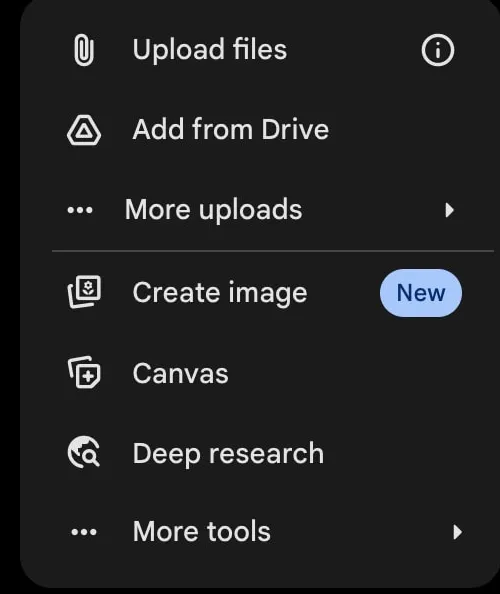
- 1 Upload files – a PDF from your computer
- 2 Add from Drive – a file from Google Drive (requires Keep Activity on and Google Workspace connected)
How these tools differ on other tasks is covered in a separate comparison (ChatGPT, Claude, Gemini or Copilot).
When to choose Gemini Notebook (formerly NotebookLM)
Gemini Notebook is a separate Google tool for working with your own sources. You upload several documents into one "notebook", and the tool answers based only on them and adds links to the source passages to each answer: click one and you see which part of the document the statement comes from. Google renamed the product on July 16, 2026; it works the same way NotebookLM did.
When it is more convenient than a regular chat: when you have several related documents (rules, their amendments and annexes), when you will come back to the same set more than once, and when it matters to check every answer quickly.
What we checked in the official documentation (checked October 21, 2026): there is a free plan, and you sign in with a Google account; on the free plan you can have up to 100 notebooks and up to 50 sources in each; one source can be up to 500,000 words or 200 MB. The tool is available in countries where the Gemini app works (Lithuania among them), and the answer language can be switched to Lithuanian (settings → Output Language). Google states that uploaded sources are not used to train models unless you submit feedback. A copy-protected PDF cannot be uploaded.
How to start: open notebook.google, create a new notebook, upload the PDF as a source and type your questions in the chat panel. More about Google's other AI features is in the article about Gemini (What is Google Gemini and how to use it every day).
PDF prompts you can copy
Once the document is uploaded, start with an overview and then ask specific questions. Replace the square brackets with your own information.
Summarize this document in 5 bullet points in plain language. Next to each point, give the PDF page you are relying on.
Where does this document talk about [terminating the contract]? Give the exact quote and the page number. If it does not mention this, say so.
Put all deadlines, dates and amounts into a table: what, by when, how much, page. Do not recalculate or round anything.
I uploaded two versions of a draft contract. List what changed in the second one: clause number, what it said before, what it says now.
I am [the tenant]. What 7 questions should I ask the other party before signing this document? Give the related clause for each.
Chapter 12 of this manual describes [replacing the filter]. Explain step by step what to do and highlight the warnings.
The request "if it does not mention this, say so" is not a formality: it reduces the risk that the tool will fill the gap itself. More on how to word prompts is in the guide (How to write AI prompts).
How to check the answer in a few minutes
- Always ask for a quote and a page. A statement without a specific place in the document is just a guess.
- Open the original and find the quote (Ctrl+F or Cmd+F). If the sentence is not there or means something else, do not rely on the answer.
- Watch the page numbering. Anthropic advises using the page number from your PDF viewer when referring to a page, not the one printed on the sheet: they often differ.
- Check all numbers, dates and amounts, not just a few. This is where mistakes cost the most.
- Ask the reverse question: "Are there clauses in the document that contradict your summary?" This helps you spot what the tool missed.
Gemini Notebook makes checking easier because the source links appear next to the answer. But even there it is worth reading the whole paragraph, not only the highlighted sentence: Google itself warns that answers may be incomplete if the question is not covered in the sources.
Scanned PDFs and tables
Not every PDF contains text. If a document was scanned or photographed, every page is an image, and the tool has to "recognize" the letters (this is called OCR). An easy way to check: open the PDF and try to select a word with the mouse. If you cannot, it is a scan.
Results with scans are inconsistent: poor quality, stamps, handwritten notes and Lithuanian letters are often recognized with errors. Also, as mentioned, ChatGPT drops images from PDFs on non-Enterprise plans. If you need just a page or two, you can upload the page as a photo and ask: "Transcribe the text of this page exactly, without correcting any errors." Then compare it with the original.
Tables are another weak spot. When a PDF is converted to text, columns can get mixed up and numbers can "travel" to another row. If the answer relies on a table, check at least a few values in the original. Claude, for example, analyzes the visual part of a PDF (tables as images, diagrams) only in documents of up to 100 pages.
Personal and confidential data
Contracts, health records, employment contracts, bank statements and court documents usually contain names, personal ID numbers, addresses and account numbers. It is better not to upload such documents to a personal AI account. If you really need to, first delete or redact the personal data (not just with a black rectangle on top, because the text can remain underneath; it is better to delete it and save a new PDF).
Upload work documents (client contracts, internal reports) only if your employer allows it and you use a tool the company has approved. In personal accounts, turn off the use of your chats for model training: in ChatGPT it is "Improve the model for everyone" under Data Controls, in Claude it is in the privacy settings, in Gemini it is the "Keep Activity" setting. Even then, it is better not to upload sensitive data.
Common mistakes
Trusting the summary without checking. A summary is not the document. Read the most important clauses yourself.
Asking too broadly. "Is this contract good?" will get a general answer. Better: "Which clauses of this contract set penalties, and how large are they?"
Forgetting that the document is too long. In very large files the tool can miss details, as Google's Gemini help also admits. If your question is about one chapter, upload only that chapter or give the pages.
Relying on AI for a legal or medical decision. AI can help you understand what to ask, but not tell you whether to sign a contract or how to treat an illness. Before an important legal decision, talk to a lawyer; for health questions, talk to a doctor.
If you do not have any tool yet and want to start for free, we reviewed the free options (Free AI).
Sources
OpenAI: File Uploads FAQ: file uploads on the free plan, 3 files per day, PDF images dropped on non-Enterprise plans.
Anthropic: Upload files to Claude: PDFs up to 1,000 pages, visual analysis up to 100 pages, advice on page numbering.
Google: Upload files to Gemini: how to upload a PDF, up to 10 files per prompt, large files may miss details.
Google: NotebookLM is now Gemini Notebook: the rename on July 16, 2026.
Gemini Notebook plans: free plan, 100 notebooks, 50 sources per notebook.
Gemini Notebook FAQ: source size limits, protected PDFs, availability in Gemini countries.
Learn about Gemini Notebook: answers with source links, data not used for training.
Gemini Notebook output language: Lithuanian among the supported languages and how to turn it on.
Gemini app countries and languages: Lithuania and Lithuanian among those supported.