For an AI tool (ChatGPT, Gemini, Copilot or Claude) to write a good email, five things are enough: who is writing, to whom, what you want to achieve, in what tone and how long. Provide the facts yourself (dates, amounts, numbers) and read the draft before sending. After this article you will know how to write a new email, fix your own draft without losing your style, and quickly check that the AI has not made anything up.
- 1Write down: who, to whom, goal, tone, length
- 2Replace names and amounts with placeholders"Client A", "[amount]"
- 3Get a draft and refine it with a second messageChatGPT · Gemini · Copilot · Claude
- 4Check facts, promises and tone
- 5Fill in the real details in your email app and send
What to put in the prompt when you need an email
The tool cannot see your inbox and does not know what happened. The more clearly you tell it, the less you will have to fix. Before writing the prompt, answer five questions for yourself.
- Who is writing? You as a private person, an employee, the owner of a small company.
- To whom? A client you know, an official you have never met, your manager, a neighbor.
- What is the goal? What exactly the recipient should do: reply, pay, confirm, give permission.
- What tone and form of address? Businesslike, warm, firm but polite. Formal or informal address.
- How long? For example "up to 100 words" or "3–4 sentences". Without this instruction the AI usually writes too much.
One more thing: provide the facts yourself. If you do not give a date, amount or deadline, the tool may "invent" them or leave blank spots. It helps to add: "If information is missing, leave [brackets], do not make anything up." General prompt-writing principles and how to fix an answer with a second message are covered in a separate guide (How to write AI prompts).
Six email prompt examples you can copy
All the examples are made up: replace the details with your own. The answer will be a little different every time, and that is normal.
- Replying to a customer complaint.
I run a small online flower shop. A customer complains that the bouquet was delivered 2 hours late. Write a reply: acknowledge the delay, explain that the courier was stuck in traffic, offer free delivery next time. Formal address, up to 90 words, no excessive apologizing.
- A reminder about an unpaid invoice.
Write a polite but clear reminder to a business client: invoice [number] for [service], €[amount], the due date was [date], 10 days have passed. Ask them to pay within 5 working days or to write if they have questions. No threats, up to 80 words.
Leave the brackets empty and fill them in yourself in the draft you get back. That way the invoice details never go into the chat, and there is no room for a mistake.
- A polite decline.
A former colleague is inviting me to help with his project on weekends. I want to say no because I do not have time, but keep good relations and the chance to work together later. Friendly tone, informal address, 4–5 sentences, no made-up excuses.
- An email to the municipality.
Write an email to the local ward office of the municipality: the street lighting in the yard next to our apartment building has not worked for a month, it is dark and unsafe in the evening. Ask them to let me know when it will be fixed. Official but simple tone, formal address, up to 120 words, with a clear subject line.
Add the address, your name and contact details yourself. Before sending, check on the municipality's website which address or system accepts such requests.
- An email to your employer.
Write a short email to my manager (she): I am asking to work from home next week from Monday to Wednesday because of renovation work at home. I will be reachable by phone and Teams. Businesslike, warm tone, formal address, up to 70 words.
- Fixing your own draft without rewriting your style.
A common problem: when you ask it to "fix" something, the AI rewrites the whole email its own way, and it no longer sounds like you. So say what to change and what not to change.
Below is my email. Correct only spelling, punctuation and grammar mistakes. Do not change the words, the tone or the order of sentences. Under the email, list what you changed. [paste the email]
If you want more than error correction: "Shorten it by a third, but keep my words and the opening. Do not add new ideas." Or ask for advice instead of new text: "What in this email could the recipient misunderstand? Point out 3 places, I will fix them myself."
What to check before you hit "Send"
AI writes fluently, but fluent does not mean correct. A five-minute check saves you from awkward situations.
- Facts, dates, amounts, numbers. Compare them with the original: do the amount, invoice number, deadline and the weekday next to the date match? Look especially closely for details you never gave: a promised discount, "tomorrow", a reason that did not exist.
- Promises. Does the email promise anything you cannot or do not want to deliver ("we will refund the full amount", "we will sort it out within a day")?
- "AI tone". Drafts are often too long, too sweet and full of stock phrases: "I hope this email finds you well", "Thank you for your patience and understanding" after every sentence. Cut everything you would not say in person.
- Translation errors. Lithuanian AI text sometimes sounds as if it were translated from English: literal calques of "get back to you", "have a great day", "it makes sense". If you write in another language and it sounds unnatural, write: "Rewrite this in more natural Lithuanian, with shorter sentences" (or the language you write in).
- Form of address and names. Is the recipient addressed the same way throughout the email? In Lithuanian that means only the formal "Jūs" or only the informal "tu", with "Jūs" and "Jūsų" capitalized consistently. Is the name in the correct vocative form ("Gerbiama Rūta", "Laba diena, Tomai")? AI sometimes gets the endings of Lithuanian names wrong.
Also check the subject line, the recipient's address and whether you attached the file you mention. The AI will not do that for you.
Personal data: what to replace before pasting
Emails often contain other people's names, addresses, phone numbers and account numbers. There is no need to put them into a personal AI account: the draft does not need them.
A simple rule: before pasting, replace the details with placeholders such as "Client A", "[address]", "[amount]", "[invoice no.]". Once you have the draft, type the real details yourself in your email app. The quality of the answer barely suffers.
If you are replying to an email you received, paste only its substance, without the signature, contact details or earlier thread. For work emails your employer's rules apply: if the company does not allow client information in personal AI tools, use only what is allowed. How to turn off the use of your chats for model training in personal ChatGPT, Claude and Gemini accounts is described in the prompt guide (How to write AI prompts).
Do Gmail and Outlook already have an AI email assistant?
Yes, but not for everyone and not in every language (checked October 21, 2026).
Gmail. The "Help me write" feature (Gemini) writes new emails and edits text based on a prompt. According to the Google Help Center it works in English, French, German, Italian, Japanese, Korean, Portuguese and Spanish. For personal Gmail accounts without a paid plan it is available only in the US; with a paid Google AI plan or an eligible Google Workspace plan it is available worldwide. Lithuanian is not on this list, so a Lithuanian email is easier to write in a separate Gemini chat (What is Google Gemini and how to use it every day) and copy into Gmail.
Outlook. Copilot can write an email draft right in Outlook: in a new message you click the Copilot icon, choose "Draft with Copilot", type a prompt and set the length and tone. Microsoft states that Copilot is included in Microsoft 365 Personal, Family, Premium and Pro subscriptions (Outlook is among the apps), while in work accounts availability depends on the company license; if you do not see Copilot, Microsoft advises contacting your IT administrator. Lithuanian is on the official list of languages Copilot supports. The difference between free Copilot and Microsoft 365 Copilot is explained in the article about Copilot (What is Microsoft Copilot).
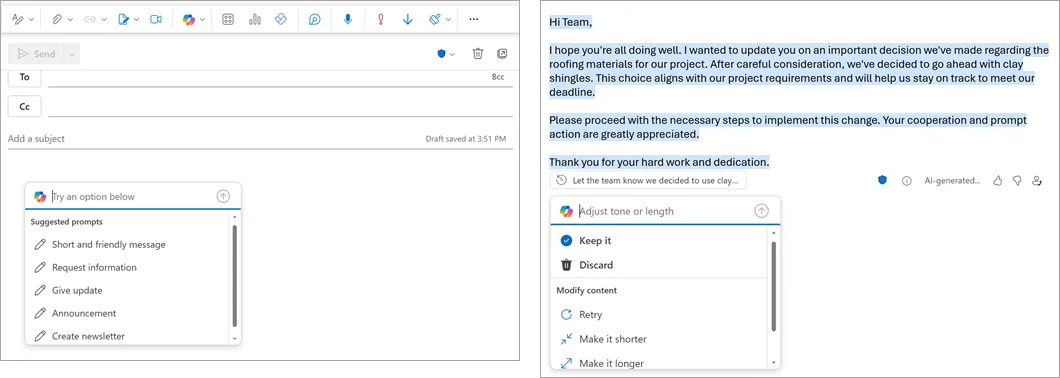
- 1 Copilot icon in the toolbar → Draft
- 2 Type a prompt or pick a suggested option
- 3 Keep it – keep the draft in the email
- 4 Change the draft: regenerate, shorten or lengthen
If you do not have these features, you lose nothing: you simply copy a draft written in a free ChatGPT, Gemini, Copilot or Claude chat into your email app.
Common mistakes
A prompt without facts. "Write a reminder about an invoice", and you get an email with a made-up deadline. Give the dates and amounts yourself or leave [brackets].
Sending without reading. A draft is a draft. You are responsible for the email, not the tool.
"Fix it" without limits. If you want to keep your own voice, say clearly what not to change.
Emails that are too long. The recipient will read it on a phone. Give a word count or ask: "Cut it in half, keep the request and the deadline."
Real data in the chat. Names, invoices and addresses are not needed for the draft: add them yourself at the end.
If you do not yet know which tool to choose, we compared them on everyday tasks (ChatGPT, Claude, Gemini or Copilot).
Sources
Google Help: Gemini features in Gmail: "Help me write" languages and which accounts and countries it is available for.
Microsoft Support: Draft an email message with Copilot in Outlook: how to use "Draft with Copilot" and who to contact if the feature is missing.
Microsoft Support: Copilot in Microsoft 365 Personal, Family, Premium and Pro: which personal subscriptions and apps include Copilot.
Microsoft Support: Copilot supported languages: Lithuanian among the supported prompt and response languages.
OpenAI Data Controls FAQ: how to turn off the use of chats for model training in ChatGPT.