Most Lithuanian companies on the Microsoft 365 stack use Teams as an upgraded email replacement and a video call platform. The tool can do much more: automate communication, approval flows, HR processes and incident management right where employees already spend a large part of their working day. Microsoft Teams automation is not a separate system to roll out; it turns your communication channel into a hub for automated work, with less context switching and fewer manual tasks, and no extra apps. In this guide: 3 levels of automation, 8 concrete workflows, how to choose between Power Automate, a custom bot and an AI agent, and an illustrative company example with numbers. For a Teams vs Slack comparison, see.
What are the 3 levels of automation in Microsoft Teams?
Automation in the Teams ecosystem comes in three levels that differ in technical requirements and in how much they can do. Power Automate (no-code) is Microsoft's native automation platform, integrated with Teams, SharePoint, Outlook, Planner and hundreds of external systems. It suits standard approval, form and notification flows without any programming; for most SMBs this level covers most of the workflows they need and lets them start within a week. Custom Teams bot (pro-code) is a programmed bot on Azure Bot Service that can run complex logic, talk with employees in natural language and connect to any external system through an API. It needs a developer, but gives you full flexibility. AI agent (gpt-4o + Microsoft Graph) is agentic automation that understands natural language, makes decisions on its own and reaches the whole Microsoft 365 data ecosystem: email, calendar, documents and meeting transcripts. This is the highest-value level, suited to organizations that want to move from fixed workflows to autonomous processes.
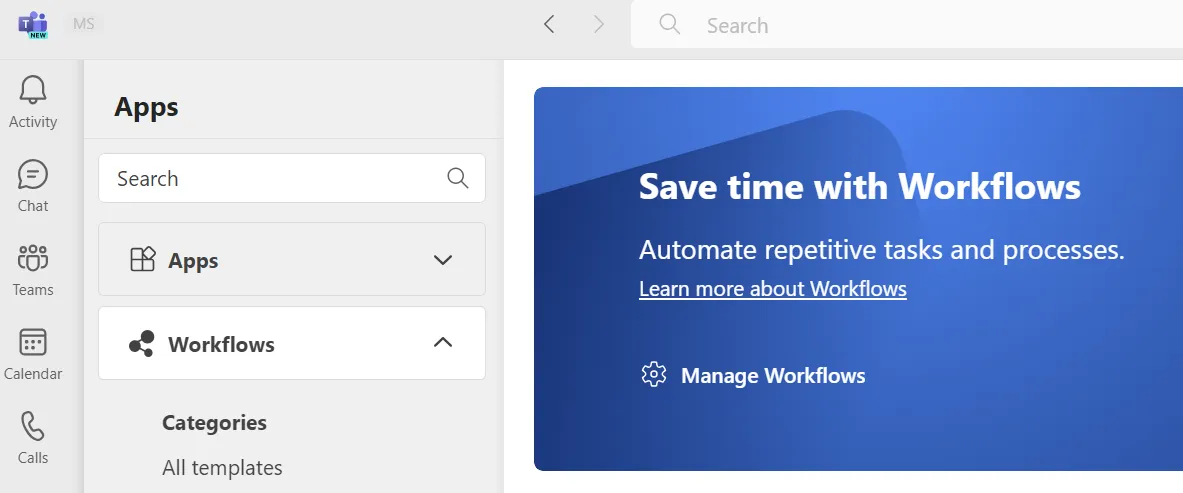
- 1 Apps: the apps section
- 2 Workflows: ready-made Power Automate workflow templates
- 3 Categories / All templates: templates by category
- 4 Manage Workflows: manage the workflows you have already added
Which 8 Teams workflows should you automate first?
Leave requests and approvals. An employee submits a form in Teams or SharePoint Forms → the manager gets an Adaptive Card message in Teams with approve and reject buttons → once approved, the leave is recorded in the HR system automatically and the employee is notified within 15 minutes. A process that used to take 2–3 days over email now runs without extra attention: the manager clicks one button and everything is done.
- 1Employee fills in the leave formTeams · SharePoint form
- 2Manager gets a card with buttonsTeams · Adaptive Card
- 3Approved leave is recorded in the HR systemPower Automate
- 4Employee gets a notificationTeamsThe manager only has to click once.
The first flow of this section as a diagram. Invoice approval works the same way: a card with the document and buttons arrives straight in Teams.
Invoice approval. A supplier invoice arrives by email → Power Automate extracts the supplier, amount and project code → the finance manager gets an Adaptive Card in Teams with the document and approval buttons → the approved invoice is forwarded to the accounting system. No more manually forwarding CC emails between accounting and managers.
New employee onboarding. When HR creates a new employee in Azure Active Directory → a personal onboarding channel is created in Teams automatically → the new hire receives links to documents, the agenda for the first days and welcome messages → IT gets a Planner task to grant the required access → the manager gets a weekly progress report. More on the Microsoft 365 ecosystem in.
AI assistant for internal Q&A (HR and IT policies). An employee writes in Teams "how many vacation days do I have left?" or "how do I submit a computer repair request?" and an AI agent trained on internal HR documents and IT policies answers straight away, with no human involved. As a rough estimate, such an assistant can resolve a large share of standard HR and IT questions automatically, freeing specialists for more complex, higher-value questions.
Meeting summaries and action items. Teams Premium or Copilot automatically generates a transcript summary of every online meeting and pulls out action items with owners. Connected to Power Automate, the action items become Planner or Azure DevOps tasks automatically, so no action agreed in a meeting disappears without a trace or stays unassigned.
Lead notifications from your CRM. The CRM receives a new lead → within 2 minutes the sales manager gets an Adaptive Card in Teams with the customer details, channel and the buttons "claim lead" or "assign to a team member" → after a choice, the CRM assigns the owner and starts the first-contact sequence. Everything stays inside Teams: no need to open the CRM just to find out a new lead has arrived.
Standard team updates (KPIs, sales digest). Every Monday at 8:00 an automatic KPI digest appears in a Teams channel: last week's revenue, pipeline status, progress toward the goal and the record of the week. The data comes from the CRM or Power BI automatically, so the manager never has to ask for reports. On choosing communication tools, see (What is Slack? The Slack app for business).
Incident alerts from monitoring. The IT monitoring system (PagerDuty, Grafana, Datadog) detects an incident → the Teams "incidents" channel immediately gets an automatic message with the incident type, affected systems and severity → the on-call engineer accepts ownership with a button → progress updates are posted to the channel automatically every 30 minutes. Response time usually drops considerably because the alert reaches the responsible person right away.
Power Automate vs custom bot vs AI agent: which one when?
The choice between the three levels depends on two variables: how complex the process is and how much technical capacity the organization has. Power Automate fits when the workflow is linear (form → approval → notification) and the data lives in the Microsoft ecosystem or has a standard connector. It covers most SMB workflow needs and lets you start without a developer in 1–2 weeks. A custom bot fits when you need natural-language interaction with the user, complex decision logic or an integration with a specific external system through an API. It needs a developer and Azure Bot Service skills, but its flexibility is unlimited. An AI agent fits when you need natural-language understanding, when not every scenario can be specified in advance, or when you want to combine Microsoft Graph data (email, calendar, documents) with AI decision-making. If there is no developer on the team, start with Power Automate and move up a level when you hit its limits.
How to build a Teams AI assistant with gpt-4o and Microsoft Graph
The Microsoft Graph API is the gateway to the whole Microsoft 365 data ecosystem: Outlook mail and calendar, Teams chats and meetings, SharePoint documents, OneDrive files, Planner tasks, Excel and Word. Connect gpt-4o or Azure OpenAI to Microsoft Graph and you get an AI agent that sees the organization's full context and can take real actions. Example: a Teams message "prepare me for tomorrow's meeting with the client Acme". The AI agent reads the last 5 emails with the client through Graph, checks the CRM history, pulls the latest purchase documents from SharePoint and returns a structured context summary in 20 seconds. Human preparation time: zero minutes. Technical components: an Azure Active Directory app registration with the required Graph API permissions, Azure Bot Service or Azure Functions to run the agent, gpt-4o or Azure OpenAI as the language model, and Power Automate or Logic Apps to orchestrate workflows. Implementation takes 8–14 weeks depending on the number of systems integrated.
Is Teams automation GDPR-compliant and secure?
The most common question from IT managers: is it safe to let an AI agent read the organization's emails and documents? The answer is yes, if you follow a few principles. Least privilege: the bot or agent gets only the Graph API permissions a specific function really needs; no "global admin" access. EU data centers: Azure OpenAI can be deployed in EU regions (for example, West Europe, Sweden Central); with a regional or "Data Zone EU" deployment type, data is processed within the EU (the global deployment type does not guarantee this). Audit log: every action the agent takes is logged in Azure Monitor, and any anomaly triggers an alert to the security team. DLP policies: Microsoft 365 Purview Data Loss Prevention policies can block confidential data (financial documents, personal data sets) from passing through automation flows. Configured properly, Teams automation meets GDPR requirements and creates no new risks. On the contrary, the audit log gives a better picture of who accesses data and when than an uncontrolled stream of emails.
Illustrative example: a company with 60 employees
Illustrative scenario: the company and the numbers are built from typical processes and rough assumptions; these are not a specific client's results. Your numbers may differ.
Say a financial services company with 60 employees on the Microsoft 365 E3 plan. The main pain points before automation: a leave request cycle took 3.5 days on average because of an email chain with several approvers; IT helpdesk tickets swirled around in email without priorities, with an average response time of 4–8 hours; management received sales reports once a month as manually prepared Excel tables that took 2 working days to put together.
Possible solution (~6 weeks): Power Automate workflows for leave, business travel and invoice approval (5 scenarios), a Teams bot for IT requests with an automatic Jira integration, an AI Q&A assistant for HR and IT policies (gpt-4o with ~85 internal documents in its knowledge base), and a weekly KPI digest for management from Power BI. Expected results after ~3 months (assumptions): the leave cycle could shrink from several days to under an hour; a large share of standard IT requests would be resolved automatically; HR and IT support would save roughly 12 h/week of manual work; management would get KPIs every Monday without asking. Indicative investment: €5,200 for setup + €220/month for support. Indicative payback, counting the freed-up working time: ~4 months. Let's discuss how to set up similar workflows in your organization (free consultation).
How much does Microsoft Teams automation cost and how long does it take?
Price ranges depend on the automation level and the number of systems integrated. Power Automate only (5–8 workflows): €1,200–2,500 setup + €100–200/month support; timeline 2–3 weeks. Suits companies that want to remove the main pain point quickly without a large investment. Custom bot + Power Automate: €3,000–6,000 setup + €200–350/month; 4–6 weeks. Suits organizations that need more complex interaction with employees in Teams. AI agent (gpt-4o + Microsoft Graph): €6,000–15,000+ setup + €350–800/month; 8–14 weeks. Suits large organizations that want autonomous AI work in context. Extra Microsoft 365 licensing costs: Teams Premium (for automatic meeting summaries) from ~€10/user/month; Microsoft 365 Copilot (for a fully integrated AI assistant) from ~€20/user/month depending on the plan (prices change). Lithuanian companies with 60–200 employees often start at the Power Automate level and move up within 6–12 months, once they better understand which workflows give the highest ROI in their business model.
FAQ
Do you need a developer to build Power Automate workflows? Power Automate is built on a no-code principle: most standard Teams workflows (leave, approvals, forms, notifications) can be set up by an IT administrator or a business user after 2–4 hours of training. More complex integrations with external APIs need some knowledge of HTTP connectors and the JSON format. The custom bot and AI agent levels need a developer and Azure platform skills.
Can a Teams bot work with our on-premise ERP (Pragma, MS Dynamics on-prem)? Yes, through Azure API Management or direct HTTP connections to an on-premise Web API. On-premise systems need extra security configuration (a VPN tunnel, firewall rules), which lengthens implementation somewhat but does not block the integration. The key condition is that the on-premise system has a REST API or Web Services access that lets an external agent retrieve data securely.
How much does Azure OpenAI usage cost for an AI agent? The GPT-4o rate is roughly ~€2–3 per 1M input tokens and ~€9 per 1M output tokens (prices change). An average Teams AI agent with 50 active users generates €15–45 in Azure OpenAI costs per month, a small share compared with the setup and support investment. The more important question is not the OpenAI cost but how many working hours per week automated answers and approvals free up in your specific team.