Make, long known as Integromat, is one of the three main workflow automation tools, alongside n8n and Zapier. If you have already heard about automation and are looking for a place to start, Make is often a good choice.
Why? Because it is visual, intuitive and powerful enough for most small business needs, with no special programming knowledge required.
How does Make work?
Make is built around "scenarios": visual automation flows that you create by dragging and connecting modules on the screen. Each module performs one action: it gets data from Gmail, creates a contact in HubSpot, sends a Slack message and so on.
A scenario runs on a "trigger": when a new email arrives, when someone fills in a form on your website, or every hour on a schedule. One scenario can connect several systems and perform more complex actions with conditional branches.
What can you automate with Make?
Make has thousands of ready-made integrations with popular apps. In practice, this means you can connect almost any system your business already uses.
Make is most often used for: moving new contacts or leads into a CRM, sending automatic emails after specific events, syncing data between Google Sheets and other systems, creating and sending invoices, and team notifications in Slack or Teams.
7 business processes you can automate with Make.com
The first process is moving leads into your CRM. When a potential customer fills in a form on your website, their contact details automatically appear in HubSpot or Pipedrive as a new lead, the salesperson gets a Slack notification, and the customer gets a confirmation email. The whole process takes 10 seconds with no manual work. It is one of the most popular Make.com scenarios in Lithuanian businesses.
- 1A customer fills in a form on the websiteTrigger
- 2The contact is created as a new leadHubSpot · Pipedrive
- 3Notification to the salespersonSlack
- 4Confirmation email to the customerEmail
The first process in this section. Make shows each step as a separate module, and each module action usually uses one credit.
The second is automatic emails after events. A customer bought a product? A "Thank you" email with instructions goes out automatically. A contract was signed? The client receives an onboarding email sequence. An invoice was paid? An automatic receipt and information about the next step. Each of these flows runs on events in your CRM or e-commerce system, so nobody has to start them by hand.
The third is generating and sending invoices. A Make.com scenario automatically creates an invoice from a Google Docs or other template and sends it to the customer as soon as the deal in the CRM changes status to "Won". This removes the need for the accounting person to step in and cuts the time to send an invoice from a few hours to a few minutes. The fourth is syncing data between systems. If data lives in several places (a salesperson keeps a list in Google Sheets, the manager uses HubSpot), Make.com syncs both sources in real time. The fifth is low-stock alerts for e-commerce. When a product's stock drops below a set level, the person responsible gets an automatic notification in Slack or by email. The sixth is planning social media content: when a new blog article is published, Make.com automatically prepares social media posts and passes them on for publishing. The seventh is improving customer service: a new question by email is automatically classified, assigned to the right team member and added to the project management system.
Make pros and cons
Pros: a visual, intuitive interface, so many business owners can build simple scenarios themselves. Better value for money than Zapier. More flexible data transformation options.
Cons: some more complex scenarios require a deeper understanding. The free plan is limited to 1,000 credits per month (as of October 2026). Data is stored on Make's servers, so if data privacy matters, n8n is a better fit.
Make.com pricing in 2026: when is the free plan enough?
Make counts credits (previously called operations): one module action in a scenario usually uses one credit. As of October 2026, the plans look like this: Free – €0, 1,000 credits per month and up to 2 active scenarios; Core – about $9/month billed annually (about $10.60 billed monthly) for 10,000 credits and an unlimited number of scenarios; Pro – about $16/month (billed annually) with priority execution and full log search; Teams – about $29/month (billed annually) for teams, with roles and shared templates. The price grows with the number of credits, so check make.com before you buy.
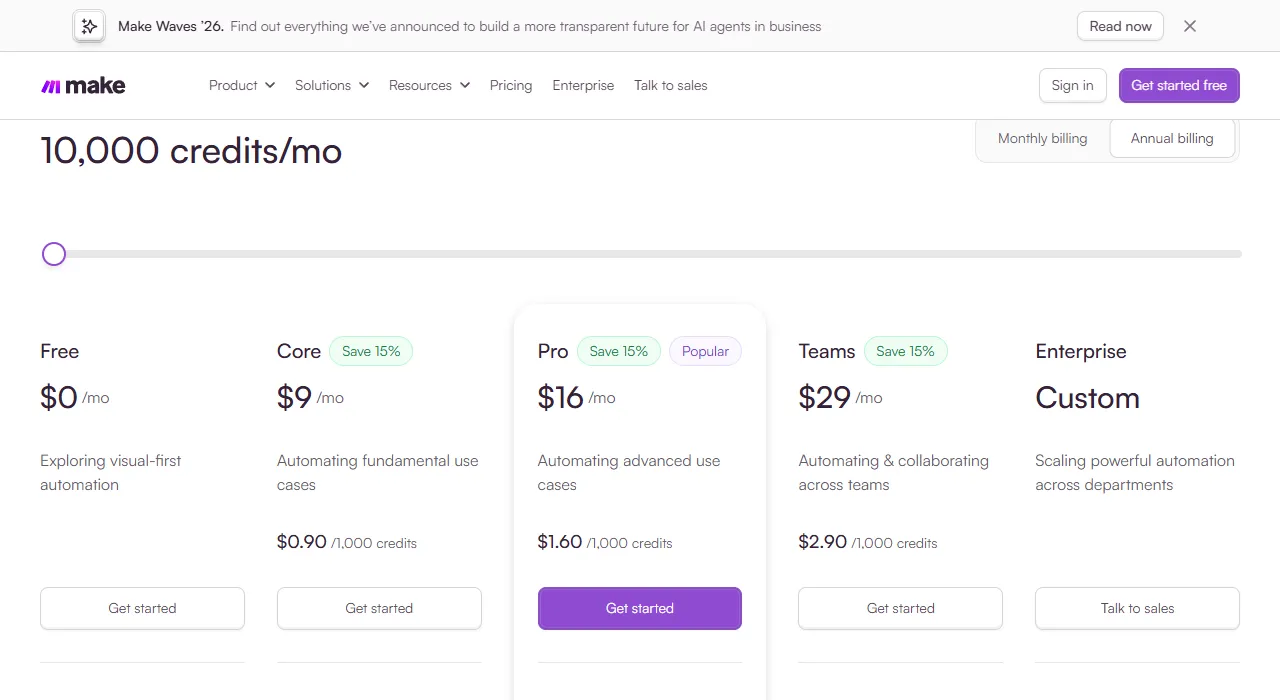
- 1 Selected number of credits per month
- 2 Slider: more credits, higher price
- 3 Core: usually enough for a small company
My practical advice: the free plan is enough for the first 2–4 weeks while you test your first scenarios. Once the scenarios start paying off, the Core plan is enough for most small companies. Keep in mind that a more complex scenario with many modules and loops uses more credits, so before scaling up, check how many credits a single run uses.
Make vs Zapier vs n8n: which one should you choose?
Make is a good middle option: more flexible and cheaper than Zapier, but simpler than n8n. I recommend Make when a business already uses many SaaS tools and wants to connect them, when a visual approach matters, and when you need automations of medium complexity.
n8n is a better fit when data privacy matters or you need more complex programming logic. Zapier is the choice when speed and simplicity are the priority and price is not the deciding factor.
How to get started with Make
Make has a free plan you can try without a credit card. Even on it you can build real, working scenarios. The first step: pick one specific process and build your first scenario.
The simplest start is form submission → notification by email or Slack. You can expand from there. If you need help setting up Make for your business, we can discuss it in a free consultation.
Step 1 – pick one process. Not "automate everything", but one recurring task that takes the most time or where mistakes happen most often: moving contacts after a form is filled in, an invoice after a won deal, or a weekly report for the manager.
Step 2 – connect two systems. Create a free account and start from a template, e.g. "Gmail → Slack" (important emails are visible to the team right away) or "Google Sheets row → Pipedrive contact". Templates come with visual setup instructions; no code is needed.
Step 3 – monitor and fix. For the first two weeks, review the scenario's run history: Make shows every error with a description. Once the first scenario runs reliably, move on to the next process. More on getting started with automation (Process automation for beginners).
When to bring in a specialist instead of doing it yourself
Doing it yourself makes sense when you are connecting 2–3 popular systems, someone on the team has at least a little technical curiosity, and it is not critical if the scenario does not work perfectly in the first few days. The free plan and a few days of trying things out are a good way to understand the platform.
You need a specialist when a scenario has more than 5 conditional branches, needs more complex data transformation (date formats, JSON, dynamic filters), connects non-standard systems (Rivilė, a Lithuanian accounting system; local ERPs; your own API), or automates financial processes such as invoices, payments and reports, where a mistake is expensive. A simple scenario with standard integrations usually takes 1–3 days to build; a more complex system with error handling takes 1–3 weeks. Aigentas.lt implements Make solutions from €450; in a free consultation I will assess your processes and suggest specific scenarios (free consultation).