Short answer: in new Outlook and Outlook on the web, go to Settings → Account → Automatic replies, turn on the toggle, set the time period, write the text and click Save. In classic Outlook, it is File → Automatic Replies. If there is no such button, your mailbox is IMAP/POP and the reply has to be created with a rule and a template.
Below are instructions for each version of Outlook (based on the Microsoft Support site, checked in October 2026), 8 ready-made reply texts and the most common mistakes that send the automatic reply to the wrong people.
Which version of Outlook do you use?
Where to find the setting depends on it. The quickest way to tell:
| Version | How to recognize it | Where to set it |
|---|---|---|
| New Outlook (Windows) | There is a “New Outlook” toggle at the top right and no “File” menu | View → View settings → Accounts → Automatic replies |
| Classic Outlook (Windows) | There is a “File” menu at the top left | File → Automatic Replies |
| Outlook on the web / Outlook.com | The address is outlook.office.com or outlook.live.com | Settings (gear) → Account → Automatic replies |
| Outlook app on your phone | iOS or Android app | Profile icon → Settings → account → Automatic replies |
| Any version with Gmail / IMAP / POP mail | The “File” menu has no “Automatic Replies” button | A rule with a template (see below) |
How to set up an automatic reply in new Outlook (Windows)
- On the View tab, select View settings (the gear icon).
- Go to Accounts → Automatic replies and turn on the toggle.
- Select Send replies only during a time period and enter the start and end date and time.
- Enter the text for colleagues (inside your organization).
- If you also want to reply to customers, select Send replies outside your organization and enter a separate text. Microsoft recommends choosing Send replies only to contacts so the replies don't go to newsletters and ads.
- Click Save.
How to set up an automatic reply in classic Outlook (Windows)
- Click File. If you see the Automatic Replies button, click it. If not, skip to the section about the rule.
- Select Send automatic replies.
- Select Only send during this time range and set the start and end, so the replies turn off on their own.
- On the Inside My Organization tab, enter the text for colleagues.
- On the Outside My Organization tab, select Auto-reply to people outside my organization, choose My Contacts only or Anyone outside my organization and enter the text.
- Click OK.
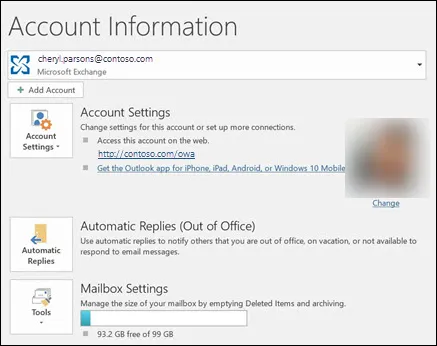
- 1 Account (Microsoft Exchange): the button is shown for Exchange / Microsoft 365 accounts, not IMAP/POP
- 2 Automatic Replies
While automatic replies are on, you will see a yellow notice below the ribbon. To turn them off earlier, click Turn off in it.
How to set up an automatic reply in Outlook on the web and Outlook.com
- At the top right, click Settings (the gear) → Account → Automatic replies.
- Turn on the Automatic replies toggle.
- Select Send replies only during a time period and enter the times. Here you can also block your calendar and automatically decline new invitations for that period.
- Enter the text in the box below. If needed, select Send replies only to contacts.
- Click Save.
- 1Settings (gear at the top)
- 2Account
- 3Automatic replies
- 4Turn on the automatic replies toggle
- 5Send replies only during a time period
- 6Save
Based on Microsoft Support (checked October 23, 2026). In new Outlook (Windows) the path is: View → the settings button → Accounts → Automatic replies.
The setting is stored on the server, so it works even when your computer is off. Once you turn it on in the browser, it also applies on your phone and in the desktop app.
Automatic reply in Outlook on your phone and Mac
iOS and Android: in the Outlook app, tap the profile icon at the top left → Settings (the gear) → choose the mail account → Automatic replies. Turn it on, choose whether to reply to everyone or only your organization, set the time and enter the text. Works for Microsoft 365, Exchange and Outlook.com accounts.
Mac: in Outlook for Mac, choose Tools → Automatic Replies in the menu bar, select the account and turn on the replies. If the menu looks a little different, you can always do the same thing in Outlook on the web.
No “Automatic Replies” button? Use a rule with a template
Microsoft states that automatic replies are not supported for Gmail, Yahoo and other IMAP/POP accounts. The workaround is a classic Outlook rule that replies from a prepared template. Important: Outlook has to stay open while you are away, and the same sender gets a reply once per Outlook session.
1. Create the template
- Create a new email and enter the subject and reply text.
- File → Save As, file type Outlook Template (*.oft). Keep the default location and save.
2. Create the rule
- File → Manage Rules & Alerts → New Rule.
- Choose Apply rule on messages I receive → Next. If you only want to reply to emails addressed to you, select the condition sent only to me.
- Under actions, select reply using a specific template, click the underlined link and in the “Look In” box choose User Templates in File System. Select your .oft file.
- Under exceptions, I recommend selecting except if it is an automatic reply: this way you avoid reply “ping-pong”.
- Name the rule (e.g. “Vacation”) and click Finish. When you are back, simply turn the rule off.
If your mail is on Google Workspace or Gmail, it is easier to use Gmail's vacation responder: Settings → See all settings → General → Vacation responder. It runs on the server and does not need your computer to be on.
8 out of office reply templates
Copy them and replace the details in square brackets.
1. Vacation
Hello, thank you for your email. I am on vacation until [date] and am not checking email. For urgent matters, please contact [full name], [email], phone [number]. I will reply to your message when I am back.
2. Business trip or event
Hello, I am on a business trip until [date], so my reply may be delayed by up to one business day. If your question is urgent, please write to [email] and my colleagues will help.
3. Outside working hours
We have received your email. We work Monday to Friday, 8:00–17:00, so we will reply by noon on the next business day. If your enquiry is about an order, please include the order number to help us respond faster.
4. Shared info@ address (always on)
Thank you, we have received your enquiry. We reply within 4 business hours. You can find prices and answers to common questions at [link]. If it is urgent, please call [number].
5. Employee no longer with the company
Hello, [full name] no longer works at [company]. We have forwarded your email to a colleague; in the future, please write to [email]. Thank you!
6. Holidays
Hello, the company is closed for the holidays from [date] to [date]. We will start handling emails on [date]. Happy holidays!
7. Sick leave or unexpected absence
Hello, I am currently out of the office and not checking email. [Name], [email], can help with your question.
8. Bilingual (Lithuanian / English)
Ačiū už laišką. Iki [data] nedirbu, skubiais klausimais rašykite [el. paštas]. / Thank you for your email. I am out of office until [date]. For urgent matters please contact [email].
Common automatic reply mistakes
- Replying to all external senders. Newsletters and spam then get the reply, and the sender learns that the address is active. Choose “contacts only” unless you work with new customers.
- No time period set. After you return, replies keep going out until someone notices. Always set an end date.
- No contact for urgent questions. “I'll be back in two weeks” with no alternative simply sends the customer to a competitor.
- Too much information. Don't include your personal phone number or where you are traveling: anyone can receive the reply.
- An IMAP rule, but the computer is off. The rule only works while Outlook is open.
From “we have received your email” to AI replies
An automatic reply only confirms that the email arrived. If dozens of enquiries reach info@ every day, the time goes not on confirmations but on the same answers over and over: prices, timelines, order status. In those cases, an AI email agent is used. It:
- reads the email and assigns a category (enquiry, invoice, complaint, spam);
- drafts a reply based on your prices and rules, so a person only reviews and sends it;
- records the new enquiry in the CRM or Google Sheets and notifies the person responsible;
- works with Outlook (Microsoft 365) and Gmail, with no extra app for employees.
I build a solution like this in 1–2 weeks; a first solution starts at €450. More details: email automation, enquiry and lead automation, pricing. You will find practical scenarios in the article email automation for business.
Frequently asked questions
How do I set up an automatic reply in Outlook?
In new Outlook and Outlook on the web, open Settings → Account(s) → Automatic replies, turn on the toggle, set the time period, write the text and click Save. In classic Outlook: File → Automatic Replies → Send automatic replies → OK.
Why is there no "Automatic Replies" button in Outlook?
The button is only shown for Microsoft 365, Exchange and Outlook.com accounts. If Outlook is connected to Gmail, Yahoo or another IMAP/POP account, you create the automatic reply with a rule and a template (.oft), but Outlook has to stay open while you are away.
Is the automatic reply sent for every email?
A Microsoft 365 automatic reply is sent to the same sender once during the set period. A rule with a template in classic Outlook replies once to each sender per Outlook session: after the program restarts, the same person may get the reply again.
How do I set up an automatic reply in Outlook on my phone?
In the Outlook app (iOS or Android), tap the profile icon, open Settings, choose the account and then Automatic replies. The feature works for Microsoft 365, Exchange and Outlook.com accounts.
How do I turn off the automatic reply in Outlook?
If you set a time period, the replies turn off on their own. Otherwise: in the browser or new Outlook, turn off the toggle in Settings; in classic Outlook, click Turn off in the yellow bar below the ribbon.
Can I automatically reply to customer enquiries, not just during vacations?
Yes. A simple "we have received your email" reply for a shared address (e.g. info@) can stay on permanently. If you want the reply tailored to the specific question, you use an AI agent that reads the email, drafts a reply and records the enquiry in the CRM.