For a Lithuanian SME in 2026, an automatic email reply is no longer an out-of-office holiday template. It is the first-contact automation layer that decides whether a prospect waits two more hours for your answer or closes the tab and writes to a competitor. In many small companies the first enquiry gets a reply only after a few hours, and at weekends on the next working day. The longer the customer waits, the more likely they are to write to a competitor. A good automatic reply does four jobs within the first 30 seconds of receipt: it acknowledges the email, sets a realistic expectation for the answer, points to the right channel if the question is urgent, and filters out noise (newsletters, automated system messages, mass outreach) so a real person sees only real questions. This guide gives you five ready-made templates, the Gmail and Outlook setup steps, the most common mistakes and the bridge to a full email automation flow.
5 ready-made auto reply templates by email type
Below are five specific templates you can copy into Gmail Templates or Outlook Quick Steps in 15 minutes. The originals were written in Lithuanian for Lithuanian customers; they are shown here in English. Each template has a clear goal, a professional but not robotic tone and a specific place for personalization: a name, a date or an enquiry number. Use them as a starting point and adapt them to your business's voice during the first two weeks of real use.
- First-contact enquiry (info@ address). Goal: acknowledge receipt and set a 4-hour response expectation during working hours. Subject: "We've received your enquiry and will reply shortly". Body: "Hello {name}. Thank you for your question about {topic}. Our team is reading it carefully now and will come back with a specific answer within the next 4 working hours (Monday–Friday 9:00–18:00 Lithuanian time). If your question is urgent, call +370 6XX XXX XXX or send an SMS, and we will respond faster. Kind regards, {your name}, {job title}".
- Customer support enquiry (support@ address). Goal: give an enquiry number, manage expectations and point to the help center for typical questions. Subject: "Enquiry #{ID} received: next step". Body: "Hello {name}. Your enquiry #{ID} has been logged in our support system and assigned to the specialist in charge. The typical response time is 6 working hours. In the meantime, if your question is about {common question A} or {common question B}, you will find the answer in our help center {URL}. If the problem is blocking your work, reply to this email with the word 'URGENT' in the subject line, and we will raise the priority".
- Invoice or payment question (accounting@ address). Goal: confirm receipt and ask for documents for a faster resolution. Body: "Hello. Our accounting department has received your email about an invoice, and it will be processed within the next working day. For a faster resolution, if you have not already included them, reply to this email with: (1) the invoice number, (2) the payment date and amount, (3) the last four digits of the bank account. During holidays or other absences, accounting replies within 2 working days; we apologize for any delay".
- Collaboration or partnership offer (hello@ or personal address). Goal: separate real offers from mass outreach. Body: "Thank you for your offer. First, I should say that in 2026 our focus is process automation services for Lithuanian SMEs, not outside partnerships. If your offer fits this area (for example, a tool that is useful to our clients, or a partnership on a specific project), reply with a short message (3–5 sentences) about the specific content of the collaboration, and we will get back to you within 5 working days. Please do not send generic newsletter or consulting offers".
- After-hours and weekend mode (all addresses). Goal: acknowledge receipt without a fake holiday tone. Body: "Hello. Your email arrived outside working hours (Monday–Friday 9:00–18:00 Lithuanian time). We will reply on the next working day by 10:30. If your question concerns system access or a payment failure, send an SMS to +370 6XX XXX XXX, and the specialist on duty will respond around the clock. In all other cases, enjoy the rest of your weekend".
How to set up an automatic reply in Gmail and Outlook, step by step
Gmail vacation responder and filters. Open Gmail → Settings (the gear icon at the top right) → See all settings → the General tab → scroll down to Vacation responder. Turn it on, set a start date (it can be in the past so it works right away), and leave the end date empty for a permanent, non-holiday automatic reply. In the subject field write a specific time ("We'll reply by 10:30 tomorrow"), and in the body use one of the templates above. Tick "Only send a response to people in my Contacts" if you want to filter out spam: Gmail will not send the auto-reply to new senders, which protects you from mass mailing lists. For conditional templates by email type you need filters: Settings → Filters and Blocked Addresses → Create a new filter by sender or subject keyword → the "Send template" action with your pre-written template.
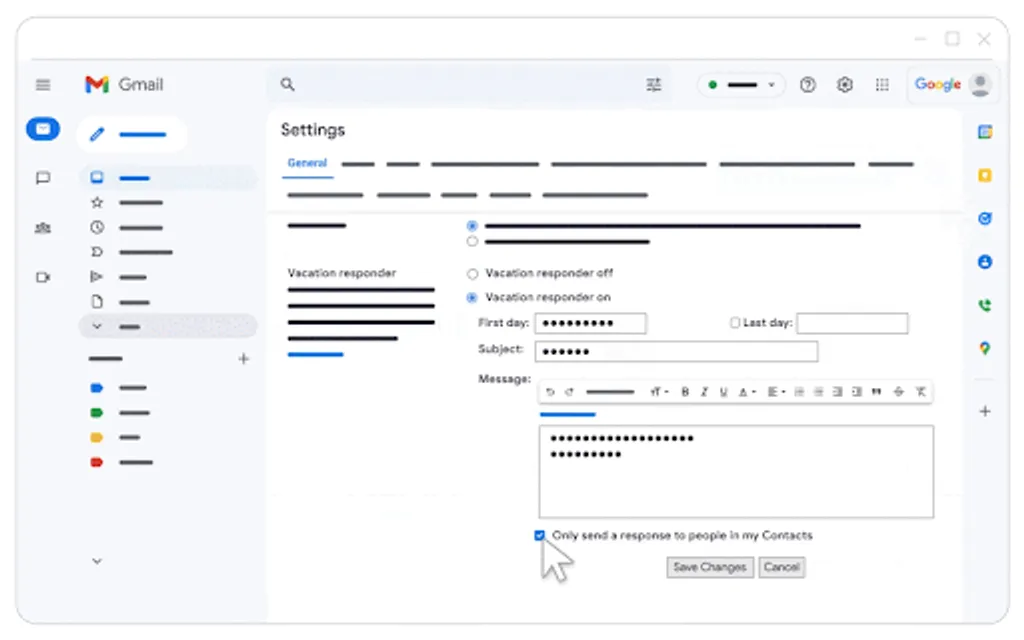
- 1 Settings (gear icon) → See all settings
- 2 General: the first settings tab
- 3 Vacation responder on: turn on the automatic reply
- 4 Dates (First day, Last day), subject and reply text
- 5 Save Changes
Outlook rules and automatic replies. In Outlook 365 (outlook.office.com): Settings → Mail → Automatic replies. Turn them on, leave them without an end date, and enter one text for internal addresses (your organization's employees) and another for external contacts. For conditional replies by subject or sender, use Rules: Settings → Mail → Rules → Add new rule → a condition (for example, "Subject includes Enquiry") → the "Reply with template" action, then choose a Quick Step with your pre-written template. The Outlook desktop version (Windows) allows more complex server-side rules through File → Manage Rules & Alerts; these work even when Outlook is closed, unlike client-side rules. This feature is included in the Microsoft 365 Business Standard license (from about $14 per user per month billed annually, at prices from July 2026; the price in euros depends on the region) at no extra cost.
When should you choose Gmail vs Outlook auto-reply? Gmail: when your team already uses Google Workspace and one shared auto-reply text plus a few filter-based templates is enough. Outlook: when you have Microsoft 365 licenses and need conditional replies by subject or sender without Apps Script code, plus a built-in split between internal and external recipients in one click.
- 1Show search options (in the search bar)
- 2Enter a condition, e.g. Subject: enquiry
- 3Create filter
- 4Send template
- 5Choose a template
- 6Create filter
This only works when templates are enabled: Settings → See all settings → Advanced → Templates: Enable → Save Changes.
Automatic reply mistakes: five common errors and how to fix them
Even a correctly set up automatic reply can look worse than no reply at all if you fall into one of the five most common mistakes Lithuanian businesses make. Below is each mistake with a one-sentence fix.
Mistake 1: a generic apology template. "Sorry, we can't reply right now" with no specific time sounds like a dismissive corporate tone and erodes trust. Fix: always give a specific time ("by 11:00 tomorrow") or a window ("within 4 working hours").
Mistake 2: no signature or alternative contact. An automatic reply without a name, job title and phone number looks like an unrelated system message, and the customer may think the email never even reached a person. Fix: add a real name, job title, phone number and one alternative channel (SMS or another contact's email).
Mistake 3: a broken sender domain. If the auto-reply comes from noreply@imones.lt or from an address recipients cannot reply to, you break the conversation thread: the customer has nowhere to send a clarification. Fix: always send from an address someone actually monitors (info@, hello@ or a personal alias).
Mistake 4: no fallback for urgent cases. A customer with a payment failure or a system access problem will not wait 24 hours; they will call or leave a bad review on your Google profile. Fix: in every template keep the sentence "If your question is urgent, call or send an SMS to {number}".
Mistake 5: an auto-reply loop. Two automatic replies (yours and the customer's) can create an endless loop that floods both inboxes within a few hours. Fix: add an exception to your Gmail filter or Outlook rule: "do not send an auto-reply if the subject includes Automatic reply or Out of office, or if the sender is mailer-daemon".
Next step: full email automation in the Gmail ecosystem
An automatic reply is the first layer of email automation: it cuts the first-response delay to seconds and takes the repetitive "we've received your email" work off a person. But on its own it does not solve the other pain points: classifying recurring questions, forwarding invoices to accounting, collecting weekly reports from the inbox into Google Sheets, and generating an AI draft reply before a person approves it. These layers make up the full Gmail automation funnel, which I cover in detail in the article (Gmail email automation): seven levels from simple filters to Apps Script code and custom OpenAI or Claude API integration, with a practical one-working-day rollout plan for an SME handling 200 emails a day. If your main goal is not just auto-reply but deeper integration of your Google workspace (calendar, documents and Sheets automation), read the guide (Google Workspace administration for business). Aigentas helps Lithuanian SMEs set up these automations: find out more about the process automation service or book a free consultation.
Frequently asked questions
Does an automatic reply hurt your Gmail spam rating? No, as long as you send from a real, monitored address and the Gmail vacation responder is on with the "Only send a response to people in my Contacts" or "... in my organization" option: Gmail sees it as a natural reply, and your SPF/DKIM standing does not change. The risk only goes up with mass sending from a personal account to unknown external recipients, which the vacation responder does not do anyway.
How many templates does a small business need? Five to eight cover most Lithuanian SMEs' needs: first contact, support, invoices, partnership, after hours, holidays, meeting confirmation and GDPR consent. More than that usually means you should hand the work over to a CRM tool or a ticketing system rather than push more templates into the Gmail Templates list.