Many small Lithuanian businesses use Google Workspace: Gmail, Drive, Calendar, Docs and Sheets are standard work tools. Yet most companies leave Gemini for Workspace and Apps Script unused: staff still sort emails by hand, write meeting summaries and copy data from one spreadsheet to another. This article covers eight specific AI integration scenarios with technical details, setup complexity and indicative time savings, adapted to Lithuanian businesses. If you are still evaluating Google Workspace for your business, I recommend reading the general guide first (Google Workspace administration for business). Here the focus is on practical AI automation scenarios that work today.
Example 1: an automatic Gmail classifier (Gemini + Apps Script)
Business Gmail accounts often receive dozens of emails a day that need manual sorting: is it a potential lead, a partner enquiry, an invoice or internal communication? Google Apps Script together with the Gemini API lets you build a classifier that reads every incoming email, decides its category and automatically adds a label, forwards it to the person responsible or moves it to the right folder. Technical complexity: medium. You need an Apps Script developer (8–16 hours to set up) or an agent with Gemini API access. Setup steps: connect the Gmail API through Google Cloud Console, integrate a Gemini Flash family model for text analysis, and configure a trigger for every incoming email. Typical benefit: the time the team spends sorting email every day drops, as a rough guide, to a few minutes of review and correction. This matters especially for small service companies where one manager handles all customer communication and cannot afford to miss an important email among a hundred promotional ones.
- 1A new email arrives in GmailApps Script trigger
- 2The model decides the categoryGemini APILead, partner, invoice or internal email.
- 3A label is added or the email is forwardedGmail
- 4Each person sees only their own emailsThe team only reviews and fixes mistakes.
Example 2: sorting Drive documents by content
Drive often turns into a chaotic file store, with contracts, invoices, proposals and presentations mixed in the same folder. Gemini for Workspace lets you build an automatic classifier that reviews newly uploaded documents, identifies their type by content (not just the file name) and moves them to the right folder with the correct sharing permissions. It can be set up without code using Make or n8n workflows; technical complexity is low to medium. The practical result: a company with 10 or more employees can save several hours of admin work a month and reduce cases of wrong document access, when confidential information ends up in the wrong place or a client gets access to internal documents. Before setup it is best to standardize the folder structure: an AI classifier works best when the destinations are clearly defined and the team sticks to a shared agreement on the structure.
Example 3: automatic meeting summaries from Calendar and Meet
Google Meet calls with clients or the team produce decisions that often stay only in memory or get scattered across emails and notepads. Gemini for Google Meet (available from the Business Standard plan) automatically generates a meeting summary with the key decisions and next steps from the transcript. An extra integration through Apps Script or Make can automatically email this summary to all participants and save it in a Docs folder with the date and participant list. Technical complexity: low. Business Standard and higher plans provide this feature without extra integrations; full CRM sync needs a medium-complexity setup. A business with 10–20 meetings a week saves dozens of hours a year on writing summaries and significantly reduces the risk of missing important decisions.
Example 4: extracting invoice lines from PDFs into Sheets
Small Lithuanian businesses often receive PDF invoices whose lines have to be typed by hand into Google Sheets or accounting software. The Gemini API with Document AI capabilities can automatically extract invoice lines (item, quantity, price, VAT code) and write them straight into a Sheets table. The integration runs on a Drive trigger: a new PDF invoice in the folder starts Gemini extraction, the lines are added to the table, and the system automatically compares them with the supplier list and flags mismatches. Technical complexity: medium to high. You need an Apps Script or n8n workflow with Document AI API access. Typical benefit: an accountant processing 30–80 invoices a month can save, as a rough guide, several hours of manual work. An added advantage: fewer errors that could lead to remarks from VMI (the Lithuanian tax authority) or disputes with suppliers.
Example 5: generating proposal drafts in Docs from CRM data
Salespeople in service companies write individual proposals from scratch, even though most of the content is often standard: only the client details, project scope and pricing change. Gemini for Workspace in Docs lets you build an AI assistant that takes the main parameters from the CRM (client name, industry, project type and budget) and automatically generates a proposal draft from an approved template. The integration: CRM (Pipedrive or HubSpot) → Make trigger → Gemini API → Google Docs template with filled-in fields → salesperson reviews and sends. Technical complexity: medium, suitable for almost any service company with a defined proposal process. Benefit: writing a proposal shrinks, as a rough guide, from an hour or more to a short review. A team sending 15–30 proposals a month can save dozens of hours a year, giving salespeople more time to build relationships.
Example 6: analyzing Google Forms responses with an automatic follow-up
Google Forms are used to collect customer feedback, register event participants or gather information about new clients. Reviewing responses and writing the matching emails by hand takes a disproportionate amount of time. A Gemini API integration can automatically analyze the content of each new response, set its priority (high-potential lead or general question), generate a personalized reply draft and send it through Gmail. Technical complexity: low to medium using Make or n8n. The workflow: Google Forms → Sheets → Make scenario → Gemini analysis → automatic Gmail email to the respondent. The practical benefit: response time drops from hours to minutes, and prospects no longer lose interest while waiting. It is especially effective for a business that gets 50 or more form responses a month from different sources or campaigns.
Example 7: a Meet transcript summary sent to the CRM
Sales and customer service teams should update the CRM record after every Meet call: the client's questions, decision points, next steps. In practice this is done inconsistently, because it takes 10–15 minutes after each call, and with a busy schedule that adds up to hours a week. The automated workflow: Meet transcript (Business Standard or higher plan) → Apps Script or n8n workflow → structured summary → automatic deal note in Pipedrive or HubSpot. Technical complexity: medium to high. You need CRM API access and workflow logic to pull out context by sales stage. A team making 5–10 sales calls a day can save, as a rough guide, 15–25 hours of CRM updates a month, while making sure no client promise or decision gets lost among the rest of the day's work.
- 1The call ends and a transcript is createdGoogle Meet (from Business Standard)
- 2A workflow picks up the transcriptApps Script or n8n
- 3AI writes a summary: questions, decisions, next steps
- 4The summary is saved on the dealPipedrive · HubSpot
Example 8: an internal knowledge base bot with Vertex AI Search
Companies with 10 or more employees often have an unstructured knowledge base: Google Drive documents, procedures in Docs, Sheets tables, email history. New and experienced staff alike spend a lot of time looking for information across these sources. The person who knows where everything is becomes irreplaceable, which is an organizational risk. Google Vertex AI Search lets you build an internal search bot that connects all your Drive, Docs and Gmail sources and answers natural-language questions in Lithuanian. Technical complexity: high. You need a Google Cloud organization account, Vertex AI configuration and a data indexing pipeline. Investment: Google Cloud costs of roughly €50–200 a month depending on how much content is indexed (prices change). Benefit: faster onboarding of new staff and less time lost looking for answers to internal questions.
How much does Gemini for Workspace cost? (Business vs Enterprise)
Gemini in Google Workspace in 2026: there is no longer a separate Gemini Business add-on; since 2025 Gemini has been included in Workspace plans. Business Standard (€13.60 per user per month) and Business Plus (€21.10 per user per month), prices excluding VAT with an annual commitment (€16.20 and €25.30 paying monthly without a commitment; Google pricing page, checked October 23, 2026), give you the Gemini AI assistant in Docs, Gmail, Meet, Sheets and Drive, as well as Meet summaries; Business Starter has only limited Gemini. Separately, Google offers Gemini Enterprise, an agent platform for organizations that is priced separately (prices change). The recommended path for small Lithuanian businesses: start with the Business Standard plan (Gemini is already included), assess usage for 30–60 days and only then decide on additional solutions. Extra integrations with Vertex AI or Apps Script are billed by Google Cloud API usage and are not tied to the Workspace plan price: they are a separate budget line during technical setup.
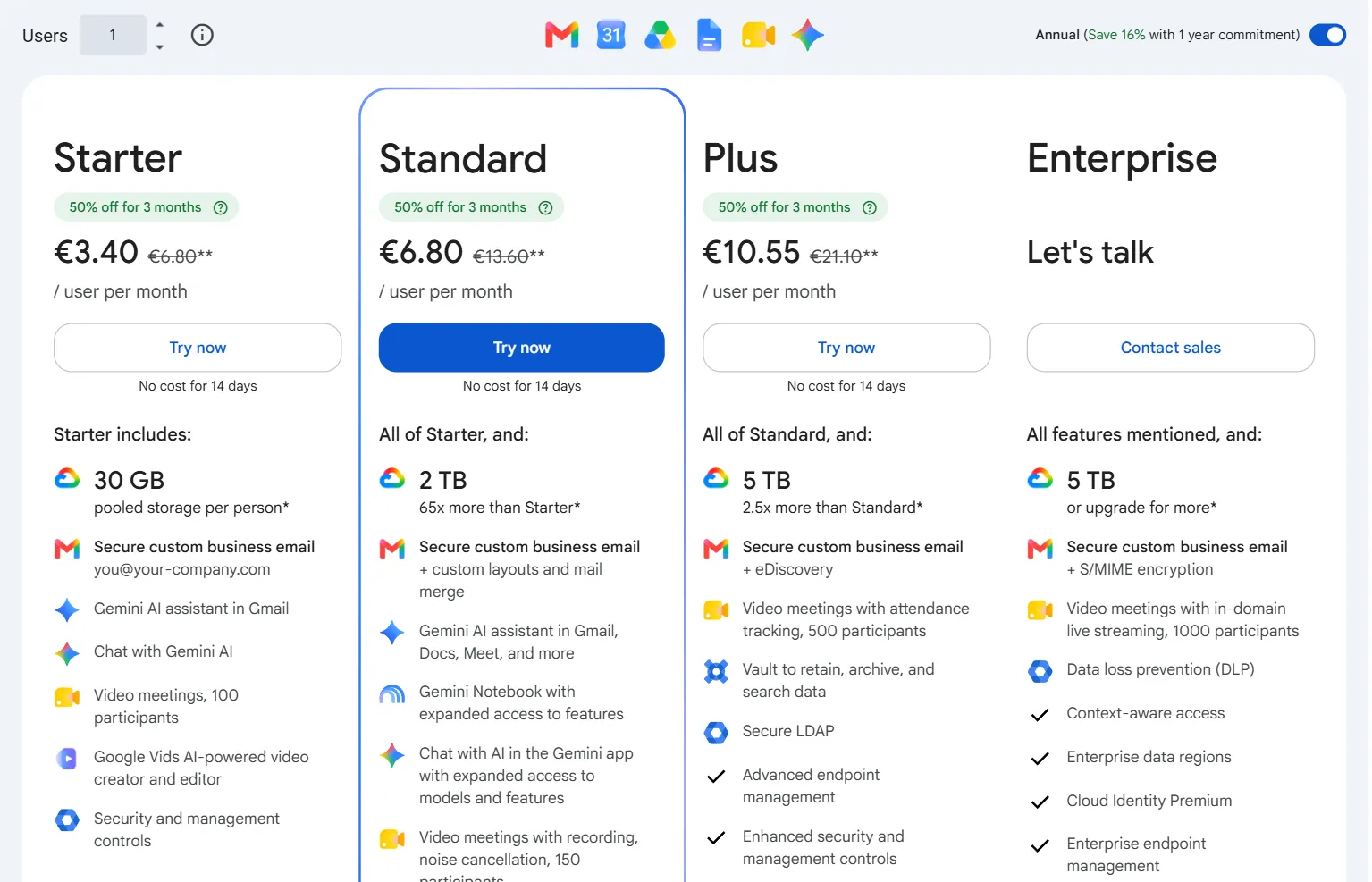
- 1 Starter: Gemini only in Gmail and a separate Gemini chat
- 2 Standard: Gemini in Gmail, Docs, Meet and other apps
Which example should you start with?
The recommended order for small Lithuanian businesses integrating Gemini for Workspace for the first time: First step: the Gmail classifier (Example 1) and the automatic Forms follow-up (Example 6). Both give the fastest ROI with the lowest technical risk, so the team feels real benefits within 2–4 weeks. Second step: Calendar/Meet summaries (Example 3) and the CRM integration (Example 7). These optimize customer communication and sales team efficiency. Third step: proposal drafts in Docs (Example 5) and invoice extraction into Sheets (Example 4), if accounting or sales need faster improvements. Long-term project: the Drive classifier (Example 2) and the Vertex AI knowledge bot (Example 8). These are worth planning only once the basic integrations run reliably and the team is used to AI tools. If you would like help setting this order for your business, write to me about how many people work in Workspace and which tasks repeat most often (AI agent development). I will reply by email with the example I would start with; we will set up a call if needed.