Notion automation is a way to turn a neatly organized Notion workspace from a static document archive into a live operations hub that keeps itself up to date. Small Lithuanian teams that use Notion for project management, a client database and a knowledge wiki often spend several hours a week copying data from forms, emails, the CRM or Google Sheets into Notion records. This work is clearly defined and repetitive, which makes it ideal for automation.
In this article I give 5 specific Notion automation examples that suit Lithuanian businesses, explain the difference between free and paid options by their EUR/month prices, and show how to get started within one week. If you want to skip the first month of trial and error, write to me about how you use Notion today (free consultation) and I will reply by email, or look at the process automation service (Process automation).
What is the Notion API, and why does automation depend on it?
Notion has an official REST API that lets you read and write data in any Notion database. It is the basis of all the automations described below: n8n, Make.com or Zapier connect to the Notion API and act in Notion on your behalf, as if they were a member of your team.
What you can do through the Notion API: create new pages and records in databases; update existing properties (status, date, text, relations to other databases); get data from Notion and pass it to other tools (for example, generate a weekly report from project statuses); search pages by property and build dynamic collections.
Setup takes about 10 minutes: you create an "Integration" on Notion's integrations page, get an Integration Token, and grant access to the databases you need by clicking "Connections" in each database's settings. This token is then used as the login in n8n or Make.com scenarios. You do not need to write code: all these tools have a visual editor where you drag blocks and build a workflow.
5 Notion automation examples for Lithuanian businesses
These five examples are illustrative scenarios based on the typical needs of small Lithuanian businesses (from IT consulting to e-commerce and service agencies). For each one I add the approximate hours saved per week and a typical integration stack, so you can see right away what to connect and with what.
Example 1 – Website contact form → Notion CRM (saves 3 h/week). A client fills in the form on the company website, Make.com catches the webhook, creates a new record in the Notion client database with the fields "Name, Company, Enquiry, Source, Status: New" and at the same time sends a Slack notification to the responsible account manager. Stack: Notion + Make.com + Slack. A typical small Lithuanian agency with 10–15 enquiries a week saves about 3 hours of manually copying form entries into its internal system.
Example 2 – Pipedrive CRM → Notion project database (saves 2 h/week). When a Pipedrive deal status changes to "Won", n8n automatically creates a Notion project page from a template with tasks tailored to the client, deadlines and the responsible manager. The team immediately has a ready project page with all the structure it needs, and nobody has to build it by hand for every new client. Stack: Pipedrive + n8n + Notion page template. Suits service companies that start 4–8 new projects a month.
Example 3 – Notion task → Google Calendar (saves 1.5 h/week). When a task with a date and an assignee is added to the Notion project database, Make.com automatically creates a matching event in the assignee's Google Calendar with a reminder 1 day before. The team no longer has to duplicate dates: Notion stays the main source for projects, and Calendar shows each person's daily workload. Stack: Notion + Make.com + Google Calendar. Especially useful for consultants and agencies with a lot of deadlines.
Example 4 – Online store orders → a weekly Notion report (saves 4 h/month). Every Monday morning n8n collects the past week's WooCommerce or Shopify orders, calculates revenue, the most popular products and the average order value, and creates a weekly Notion page "Sales 2026-W20" with a neatly organized table. The manager no longer asks the bookkeeper to prepare a report: it is already in Notion. Stack: WooCommerce + n8n + Notion. I describe a similar solution based on Sheets here: (Google Sheets automation for business).
Example 5 – Gmail support emails → a Notion ticket system (saves 2.5 h/week). When an email arrives at the support@ address, Make.com reads the content, creates a Notion ticket with the status "New", assigns it to the first-line team member based on its category (fault, question, request) and sends the client an automatic confirmation within 1 minute. A small team gets a complete helpdesk system without an expensive Zendesk. Stack: Gmail + Make.com + Notion + Slack.
How to sync Notion databases with Google Sheets
One of the most common needs in Lithuanian businesses: a Notion database and Google Sheets have to show the same data, because the finance person or bookkeeper works in Sheets while the project team works in Notion. Syncing them by hand is never-ending work, and the two systems rarely match for more than a few hours.
Practical sync scenarios: a new record in a Notion database → a row with the same properties is added to Google Sheets automatically; a change in a Google Sheets row (for example, a payment status of "Paid") → the matching Notion record is updated; a scheduled export, every Monday at 8:00, of the whole Notion client database to Sheets for reporting and for the bookkeeper.
An important detail: a full two-way sync (Notion ↔ Sheets in both directions in real time) is technically complex and often unnecessary. There is a risk of creating an endless loop between the systems, where one update triggers another. Usually a one-way direction that you clearly agree on as a team is enough: for example, Notion is the master and Sheets is a mirror for the bookkeeping.
Notion as an automation hub: more advanced scenarios
Once basic Notion automation is working, the next step is to use Notion as the central engine of your business operations: data flows in from all systems, and notifications to the team go out from it. These scenarios are relevant for teams that have already mastered 2–3 simpler workflows.
Notion + AI: with n8n + Claude or GPT-4 you can generate Notion content automatically, for example a summary of a client call from an Otter.ai or Fireflies transcript, a project description from a short brief, or a weekly report summary from raw sales data. The AI reads the data and writes the text in Lithuanian; a person only reviews it before it is sent to the client or management.
Client onboarding: when a new client is created in the CRM → Notion automatically creates a page for the client's project from a template, with all the sub-pages needed (Kick-off, Brief, Summary, Client invoices), the first tasks and team permissions. A new project is ready in 30 seconds instead of half an hour of manual work.
A knowledge base that fills itself: new client survey responses → a Notion record is created automatically with a category (Problem, Feature request, Praise) and action items. After 3 months the team has systematically collected voice-of-the-customer data, not a messy pile of emails in Gmail folders.
How much does Notion automation cost? Free vs. paid options
Notion automation costs range from zero to a few hundred euros a month, depending on how complex the workflows are and how many events they process. Here are three realistic cost paths for a small Lithuanian business team (3–15 employees), so you can choose the right starting point right away.
Built-in Notion automations (database automations). When a record is added or one of its properties changes, Notion itself can take an action in the database: assign a person, change a status, create a page or send a Slack notification. Important: on the free plan you can only create Slack notification automations, and all others need a paid plan, Plus (€9.50 per seat per month) or Business (€19.50), prices billed annually (Notion pricing page, checked October 23, 2026). Suits simple internal scenarios. The limitation: they hardly work with external systems such as the CRM, forms or email.
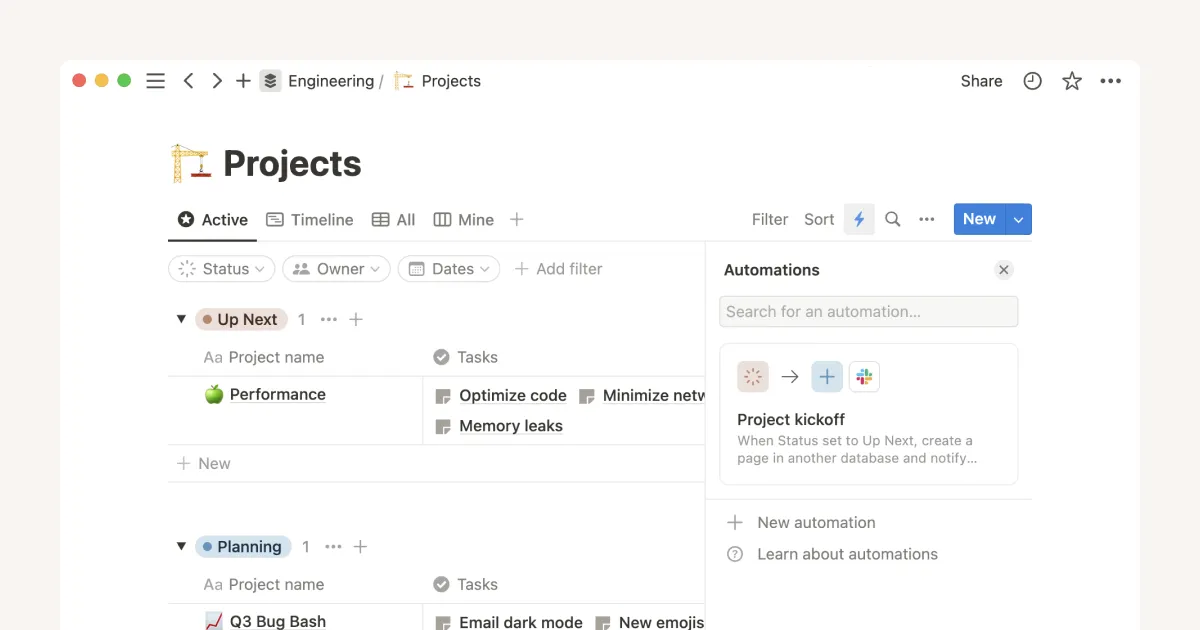
- 1 ⚡ – database automations
- 2 Existing automation: trigger (Status) → actions (new page, Slack notification)
- 3 New automation – create a new one
The low-cost path – Make.com Free / Core (as of October 2026). The Make.com Free plan gives you 1,000 credits a month and up to 2 active scenarios, which is enough for a simple workflow (form → Notion → Slack) during the first month of testing. The Core plan (about $9/month billed annually, 10,000 credits) suits several active workflows; Pro (about $16/month) adds priority execution, and more credits are bought separately. n8n Cloud Starter starts from €20/month billed annually; self-hosted n8n costs €0 for the license, but you will need a VPS (from a few euros a month).
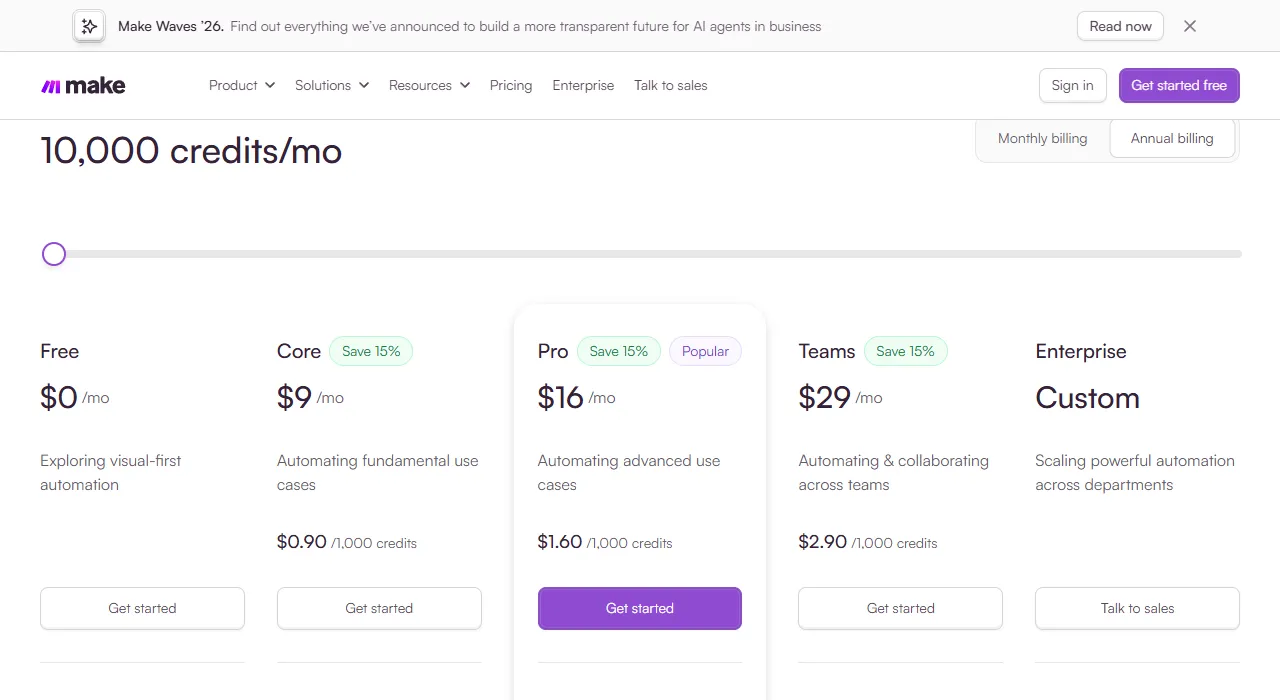
- 1 Free – to try your first workflow
- 2 Core – for several active workflows
The setup investment is one-time. If you order the setup from me, a simple workflow (1–2 triggers, one Notion database) costs from €450 one-time. A more complex integration with a CRM, conditional branching and an AI component is usually €600–1,200. After setup the workflow runs on its own; monthly support is not needed unless your business logic or API settings change.
A practical recommendation: start with the Make.com Free plan and one workflow. Once you have confirmed the value within 2 weeks (the time saved should be visible right away), add more workflows on the same plan. The limit of 1,000 credits a month is usually enough for the first 2–3 months of testing.
How to get started: what to automate in Notion first
I recommend this rollout order: 1) pick the one Notion process that takes the most manual data copying today (usually moving form responses or email data into the client database); 2) create a free Make.com account and a Notion integration with access to that one database; 3) launch a simple workflow within 1–2 days and watch it run for a week with real data; 4) only then expand to other processes based on the 5 examples above.
The classic mistake is to start with the most complex scenario, such as a two-way Notion–Sheets sync or AI-generated reports. The first workflow should be simple enough that you can understand and fix it yourself. That way you build confidence in the tool before moving on to expensive integrations.
If the setup looks too technical or you want to skip the first month of trial and error, Aigentas.lt helps small Lithuanian businesses build their first Notion automation workflow in 1–2 weeks, from mapping the process to a working integration with your existing systems (CRM, online store, Google Workspace). More information is on the service page (Process automation), and you can describe your situation here (free consultation). I will read it and reply by email. A related article about a similar Google Sheets solution: (Google Sheets automation for business).